How I Keep My Laptop and Monitors Cool in a Warm Room Guide: The Sweat-Free Blueprint
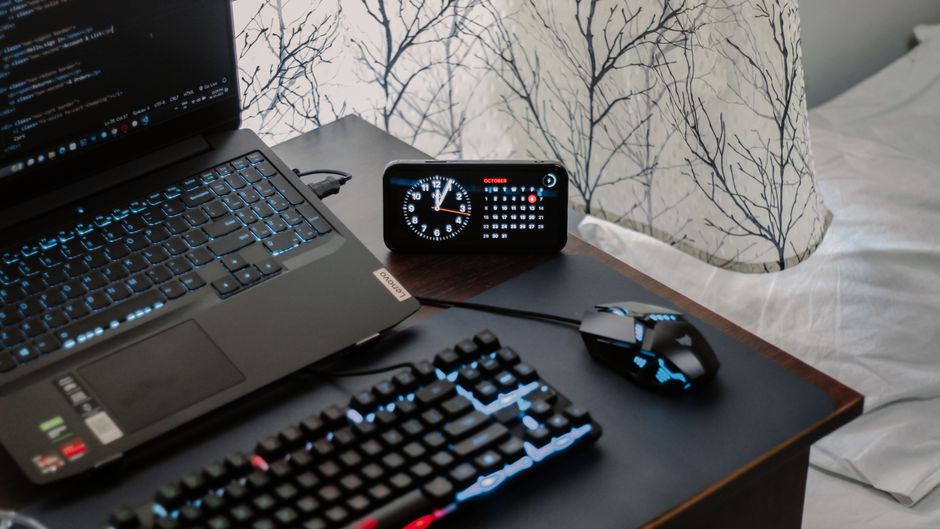
My office hits 85 degrees Fahrenheit on a bad July afternoon. No central AC, just a stubborn window unit that sounds like a lawnmower playing dying chords. Last summer, my primary workstation turned into an absolute frying pan. The fans screamed like jet engines at takeoff. My frame rates tanked during a basic video render, and the plastic bezel on my secondary monitor actually warped. It was brutal. I’ve spent the last year treating my desk like a thermodynamics lab, testing every crazy idea from aluminum foil tricks to active cooling pads. Here is the unfiltered truth about keeping your tech alive when your room feels like a sauna.
- • The Ugly Truth About Ambient Heat and Silicon
- • Elevation Beats Expensive Gadgets Every Single Time
- ↳ What About Monitors? They Bake From the Inside Out
- • Targeted Airflow Hacks That Actually Work
- • Maintenance Tasks You Are Definitely Ignoring
- ↳ Should I remove my laptop battery if it runs hot?
- ↳ Do laptop cooling pads with built-in water channels work?
- ↳ Is it safe to put a laptop on a metal baking sheet for extra cooling?
- ↳ How do I know if my monitor is overheating?
Key Takeaways & Quick Overview
AI Verified
- ✔How i keep my laptop and monitors cool in a warm room guide: the sweat-free blueprint my office hits 85 degrees fahrenheit on a bad july afternoon.
- ✔No central ac, just a stubborn window unit that sounds like a lawnmower playing dying chords.
- ✔Last summer, my primary workstation turned into an absolute frying pan.
- ✔The fans screamed like jet engines at takeoff.
The Ugly Truth About Ambient Heat and Silicon
Silicon hates you when it’s hot. Or more accurately, it hates physics. When thermal dynamics of computer processors kick in, your gear has two choices: throttle performance to avoid melting, or cook itself into a silicon brick. Most people think their hardware is breaking because it’s old. Wrong. It’s choking on its own hot air.
Your room’s ambient room temperature guidelines usually assume a comfortable 70-degree office. When you blow past 80 degrees, the temperature delta between your internal components and the room air shrinks. That means heat transfer drops off a cliff. The fans can spin at 100%, but they’re just pushing lukewarm air over already hot metal.
Trust me on this: you cannot fix a hot room with software tweaks alone. You have to change how air moves around your workspace.
Elevation Beats Expensive Gadgets Every Single Time
Let’s talk about the bottom of your laptop. It’s usually a flat slab of plastic or aluminum trapped against a flat wooden desk. That creates a micro-climate of dead, trapped air. The rubber feet on your machine are often barely three millimeters high. That is not enough clearance.
I stopped using flimsy plastic risers years ago. Now, I use a minimalist aluminum stand that lifts the back of the laptop by about three inches. Just doing that dropped my idle temperatures by four degrees Celsius. Why? Because intake fans can finally breathe. If you don’t want to buy a stand, grab two bottle caps or a couple of thick books and prop up the rear feet. Give the intake vents some breathing room.
What About Monitors? They Bake From the Inside Out
Monitors don’t have fans. Let that sink in. They rely entirely on passive convection. Hot air rises, escapes through the top vents of the plastic chassis, and pulls cooler air in from the bottom.
When the room is already warm, that passive loop breaks down. The top of your monitor starts cooking the internal power supply board. I learned this the hard way when my ultrawide screen started developing vertical purple lines after three hours of heavy coding in a heatwave.
To fix this, I ditched the stock monitor arms that pushed the screens flush against the wall. I pulled them forward six inches to allow air circulation behind the panels. It looks slightly less tidy, but my monitors no longer smell like hot electronic dust when I turn them off.
Targeted Airflow Hacks That Actually Work
Forget those $80 RGB cooling pads with tiny, screaming fans that sound like a swarm of angry hornets. They pull too much power from your USB ports and move barely any air. Instead, look at macro-airflow.
- The Cross-Breeze Setup: Put a small oscillating desk fan on the floor pointing *up* toward your desk, not directly at your face. You want to push the rising hot air away from the bottom of your desk before it pools around your gear.
- Aluminum Heat Sinks: I taped a few spare passive aluminum heat sinks (meant for M.2 SSDs) directly to the bottom chassis of my laptop where the CPU sits. Aluminum absorbs thermal energy fast. It acts as an external radiator.
- The Desk Material Trap: If your desk is pushed against a wall, the wall traps heat. Pull the entire setup an inch away from the drywall. It sounds trivial, but that tiny gap lets trapped heat dissipate instead of reflecting right back into your hardware.
Maintenance Tasks You Are Definitely Ignoring
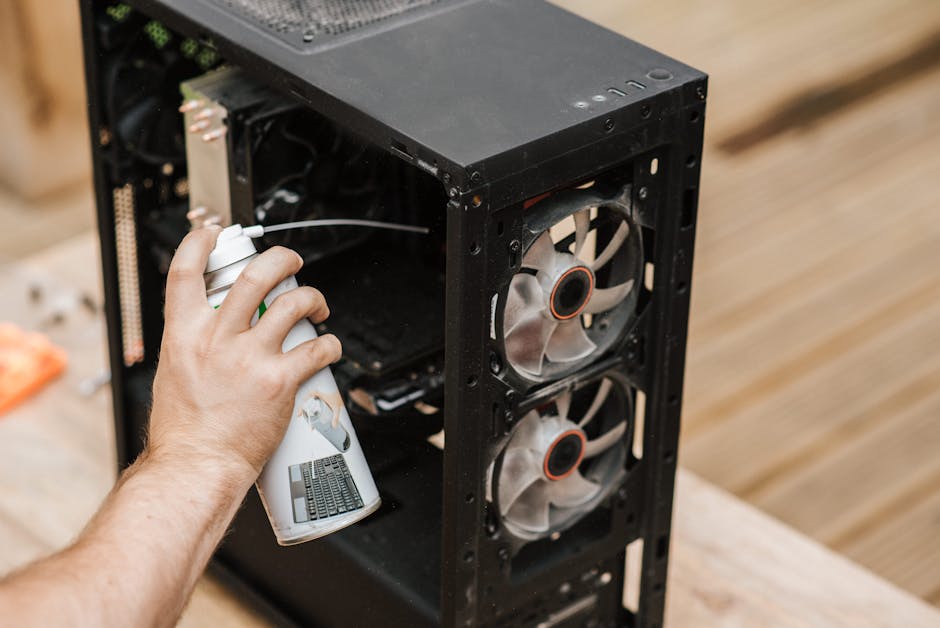
I’ll keep this short because you already know you need to do it, but you’re procrastinating. Dust is a thermal blanket. A millimeter-thick layer of gray fuzz inside your laptop’s heatsink fins will completely block airflow.
Once every six months, I pop the bottom cover off my machine. I hold the fan blades gently with a toothpick so they don’t spin (spinning them with compressed air can fry the motherboard’s fan header with reverse current), and I blast the heatsinks from the *inside out*. The amount of disgusting grey felt that flies out is impressive. Doing this alone can easily shave 10 to 15 degrees off your load temperatures.
Frequently Asked Questions
Should I remove my laptop battery if it runs hot?
Most modern laptops have internal lithium-ion batteries that degrade rapidly in high heat. While you shouldn’t physically rip out an internal battery, you can use software to limit the maximum charge to 60% if the laptop stays plugged in all day. Keeping it at 100% while the chassis is hot creates a swollen battery waiting to happen.
Do laptop cooling pads with built-in water channels work?
Phase-change cooling pads and passive gel mats work surprisingly well for short bursts, but active liquid-cooled pads are usually more trouble than they are worth. They leak, they are bulky, and if the pump fails, you’ve got stagnant warm water sitting right under your expensive machine.
Is it safe to put a laptop on a metal baking sheet for extra cooling?
It actually works as a makeshift passive heat sink because metal conducts thermal energy away from the chassis. However, it looks ridiculous, scratches your desk, and you risk shorting something out if static electricity builds up. Stick to proper aluminum stands.
How do I know if my monitor is overheating?
Look for ghosting, image retention (where faint outlines of windows stay on screen after you close them), random flickering, or sudden automatic dimming. If the top back casing of the monitor is too hot to comfortably leave your hand on for more than five seconds, it’s running way too hot.